GPU Monitor
1 Install Driver
For NVIDIA graphics cards, users can visit https://www.nvidia.com/en-us/drivers/ to find and download the driver version compatible with their GPU model.
For example, if the downloaded file is NVIDIA-Linux-x86_64-570.86.15.run, upload it to your 1Panel server, then run the following commands in the command line to install:
chmod +x NVIDIA-Linux-x86_64-570.86.15.run
./NVIDIA-Linux-x86_64-570.86.15.run
Follow the on‑screen prompts to complete the installation. The
nvidia-smicommand is installed automatically with the NVIDIA driver. 1Panel usesnvidia-smito retrieve GPU information.
2 View GPU Information
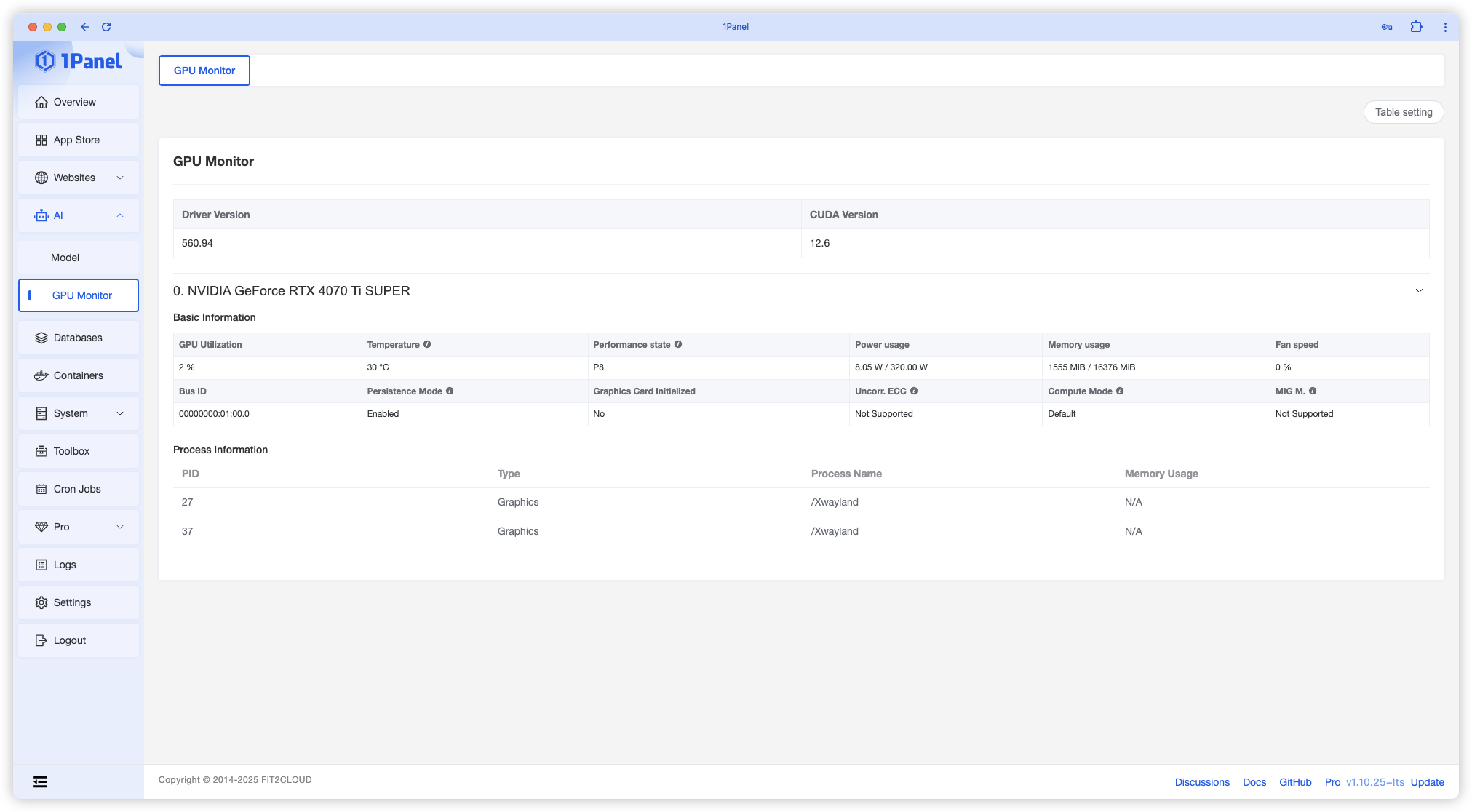
On the GPU monitoring page, you can view the driver version, GPU model, utilization, temperature, power consumption, and other basic metrics, as well as processes currently using the GPU.
3 Use GPU
After installing the GPU driver, you must also install the NVIDIA Container Toolkit by following the NVIDIA official guide to enable GPU access in apps from the App Store or other containers.
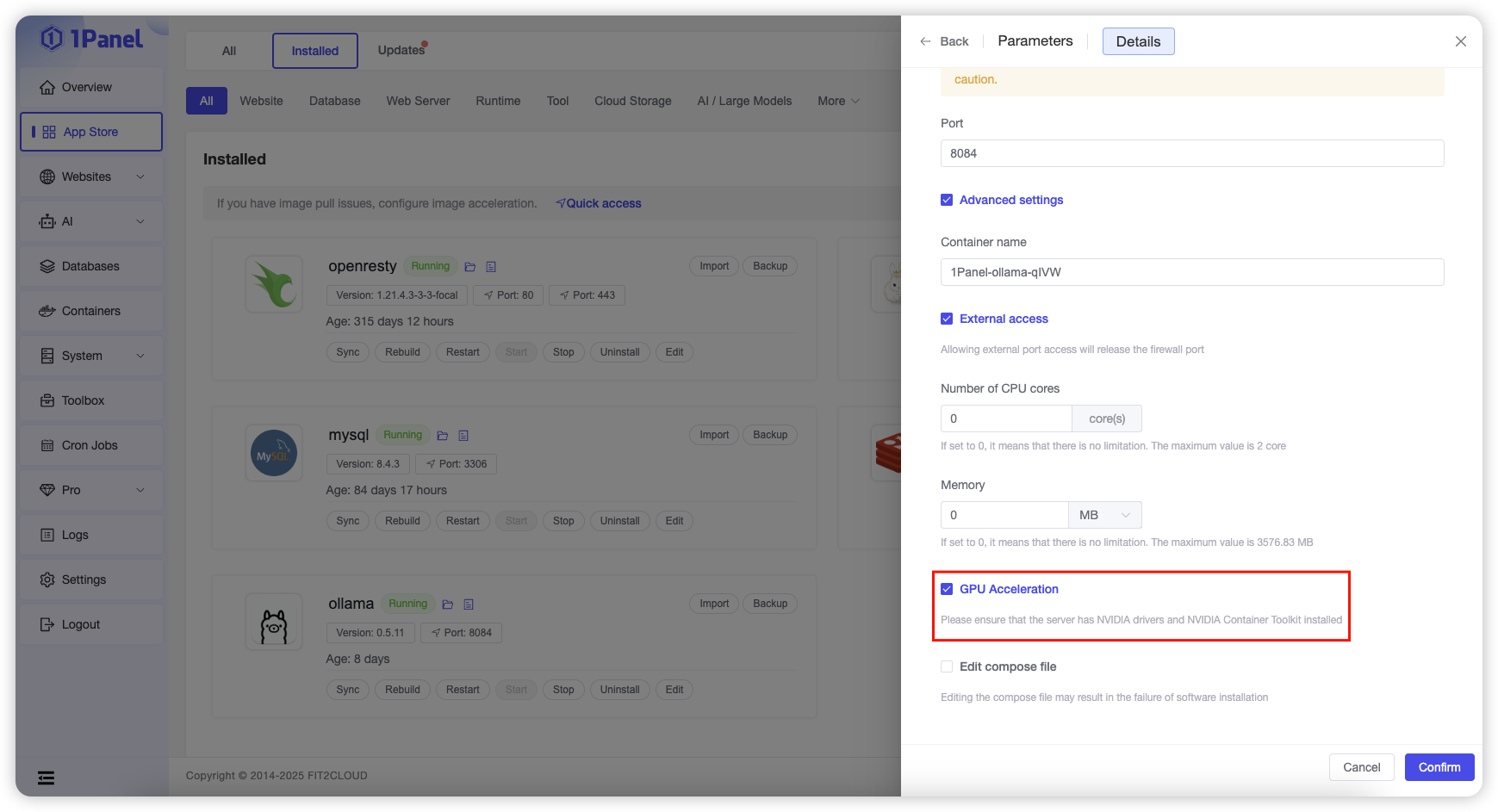
When installing an app from the App Store, enable
GPU Accelerationin Advanced Settings to grant the app GPU support.
Take 1Panel Further
Running 1Panel OSS? Pro Edition adds WAF protection, unlimited AI agents, multi-node management, and priority support — starting at $80/year.